How to Use ALSChat
A written guide you can follow step by step, from the first screen to chatting with family. Some sections also have a short video at the end.
🚀 1. Getting started
ALSChat runs in the web browser (alschat.com) and as an Android and iPhone/iPad app. The letter board itself is free and needs no account.
Open alschat.com or the ALSChat app and choose the language of the letter board. You can change it later in Settings (top-left).
Choose how letters are selected. "Tap/click directly" is manual mode (section 2) and "Semi-automatic scanning (blink to select)" is semi-automatic mode (section 3). You can switch anytime under Settings → Selection Method.
Spell words letter by letter. Word suggestions and quick phrases appear above the board — choosing one completes the word or sentence at once.
Tap the text box at the top to hear what was written, read aloud by the device.
To chat with family or caregivers, sign up for free. The patient and each caregiver need their own account (see sections 4 and 5).
✋ 2. Manual mode
A caregiver sits facing the patient, watches which direction the patient's eyes point, and taps the matching group/letter. No camera is needed.

The caregiver and patient sit facing each other with the screen between them. The caregiver watches where the patient's eyes point and taps that spot on the screen.
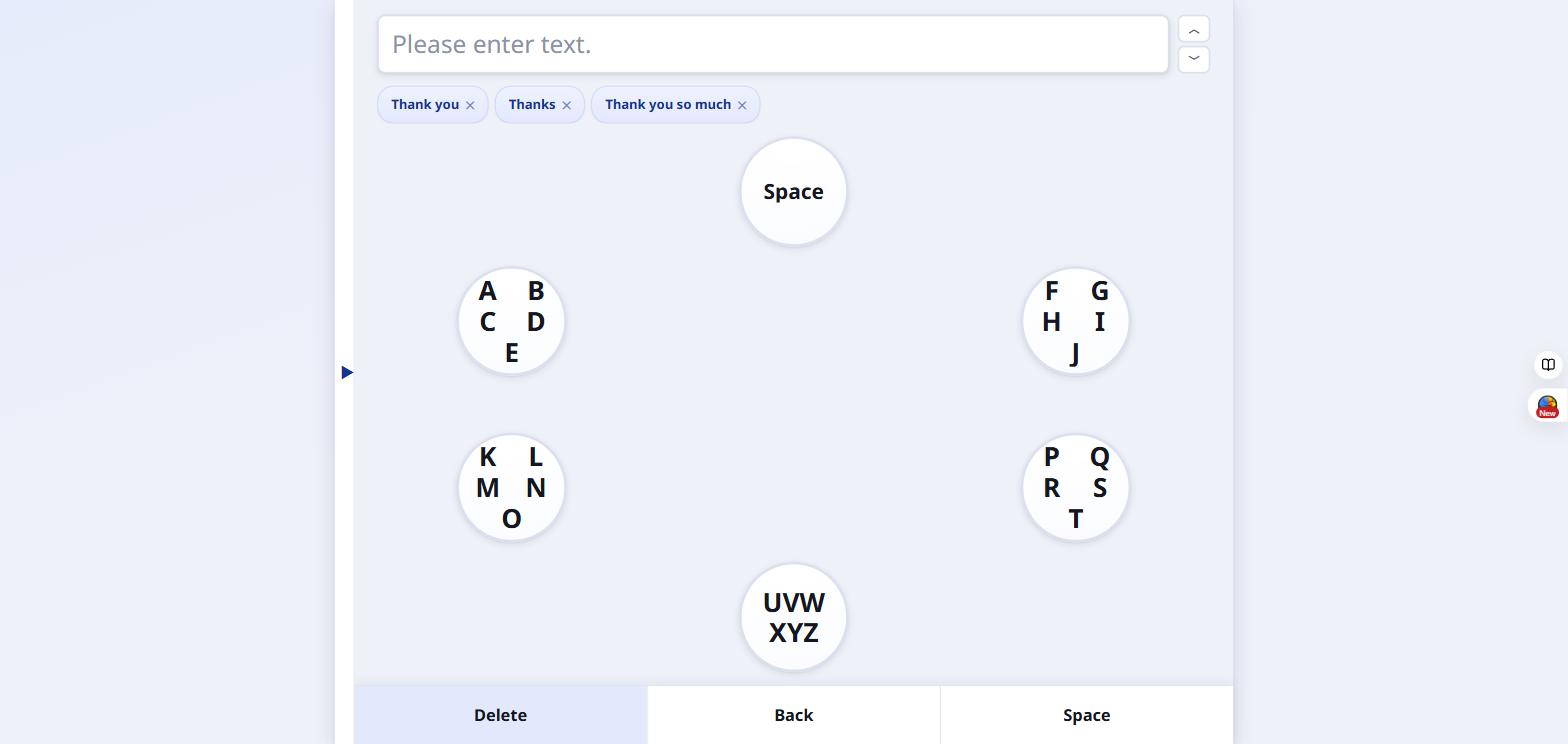
The screen is split into 6 groups arranged in a circle. The caregiver sits across from the patient and watches which group the patient's eyes point toward — e.g. the 10 o'clock group (top-left).
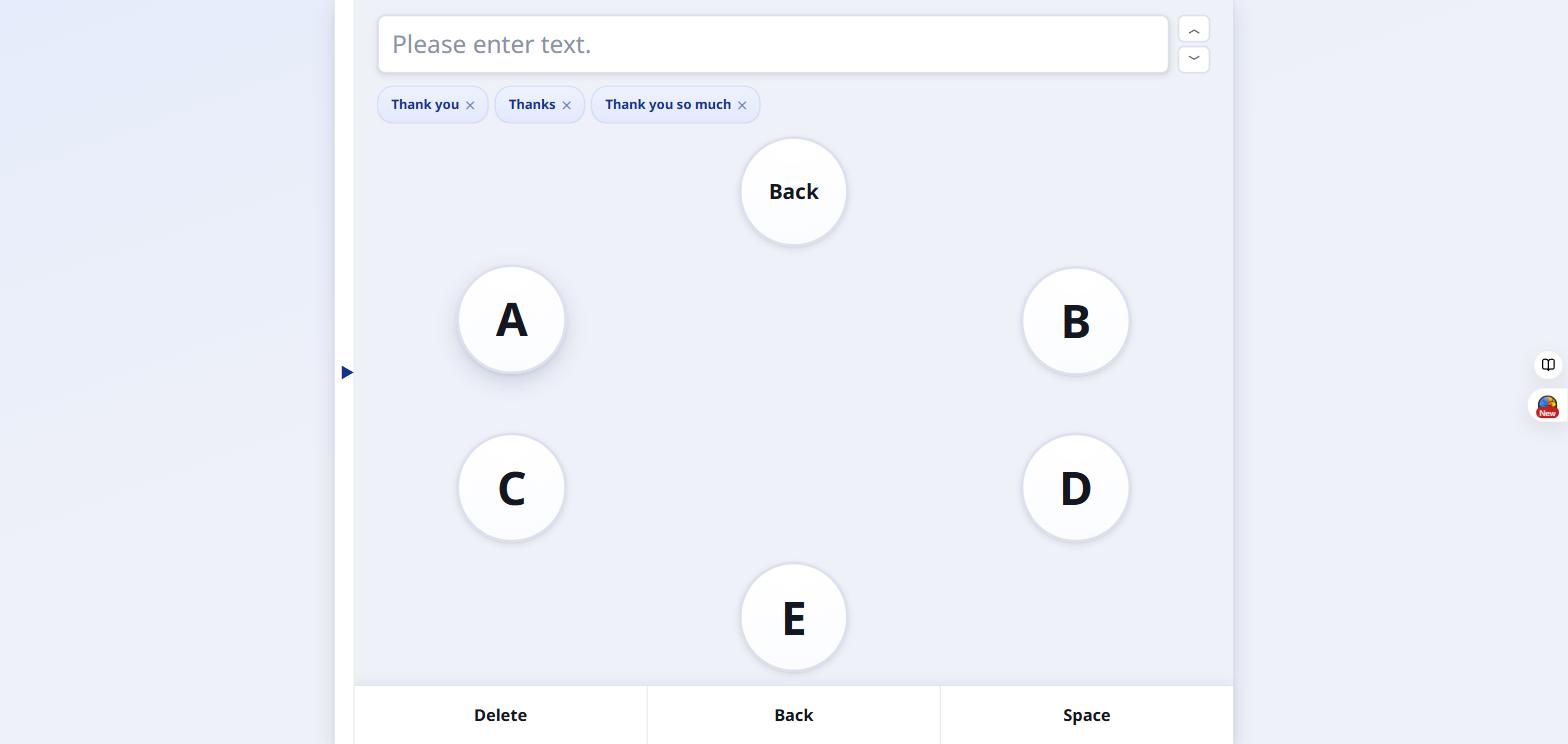
Once the caregiver taps that group, it opens into individual letters. The patient then looks at one letter — e.g. B at the 2 o'clock position — and the caregiver taps it.
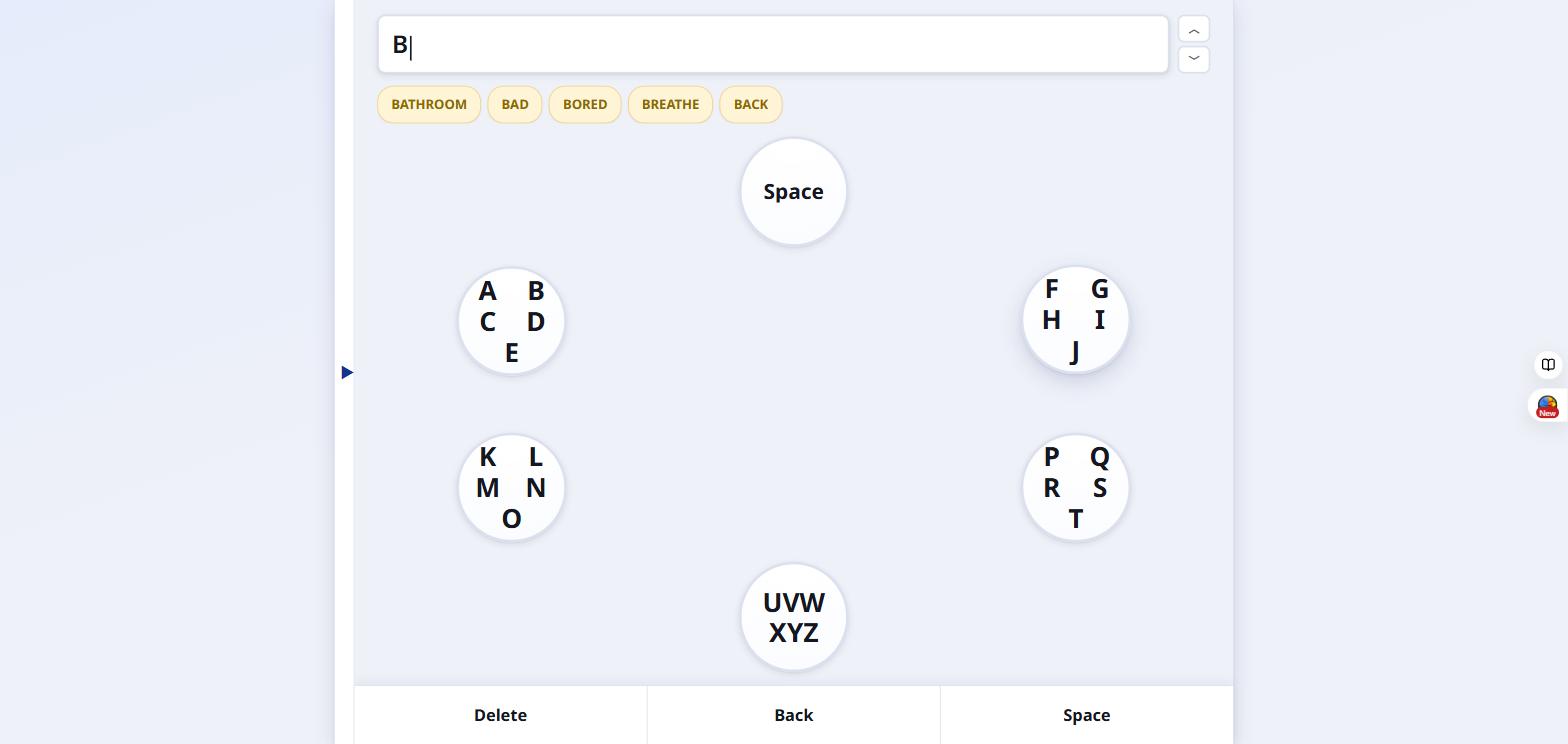
The selected letter appears in the text box at the top, and word predictions show up right away — tapping one finishes the word or sentence.
Watch the video
😉 3. Semi-automatic mode (blink scanning)
The patient can use this alone, without a caregiver right next to them — only a front-facing camera is required. Groups and letters highlight one at a time; the patient blinks for about half a second to confirm.
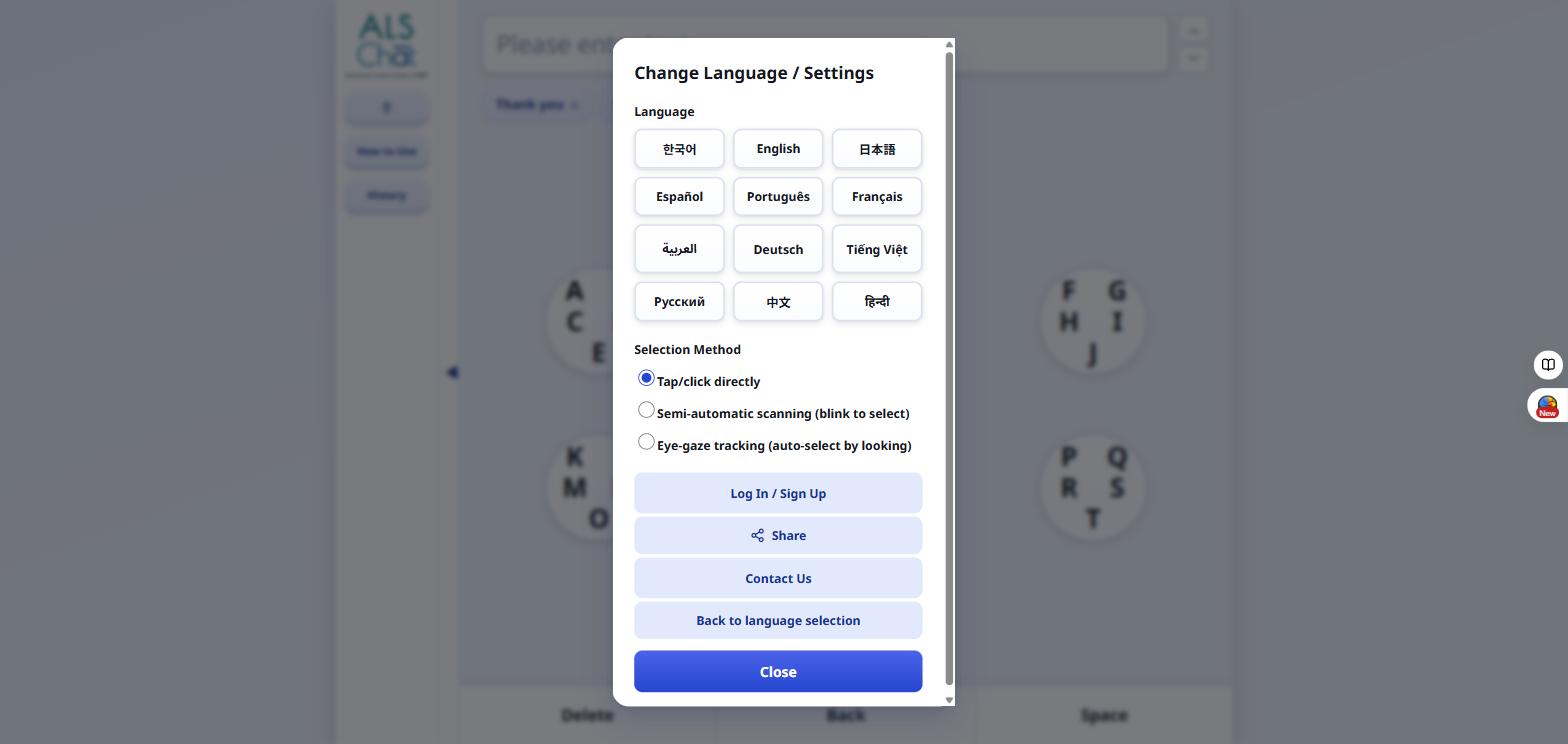
A caregiver opens the Settings menu in the top-left and, under "Selection Method," chooses "Semi-automatic scanning (blink to select)."
When semi-automatic mode turns on, a tip appears: place the device slightly above eye level, about 40–50 cm from the eyes. If it sits lower than the eyes, looking down at the screen can be mistaken for a blink and a spot may be selected on its own.
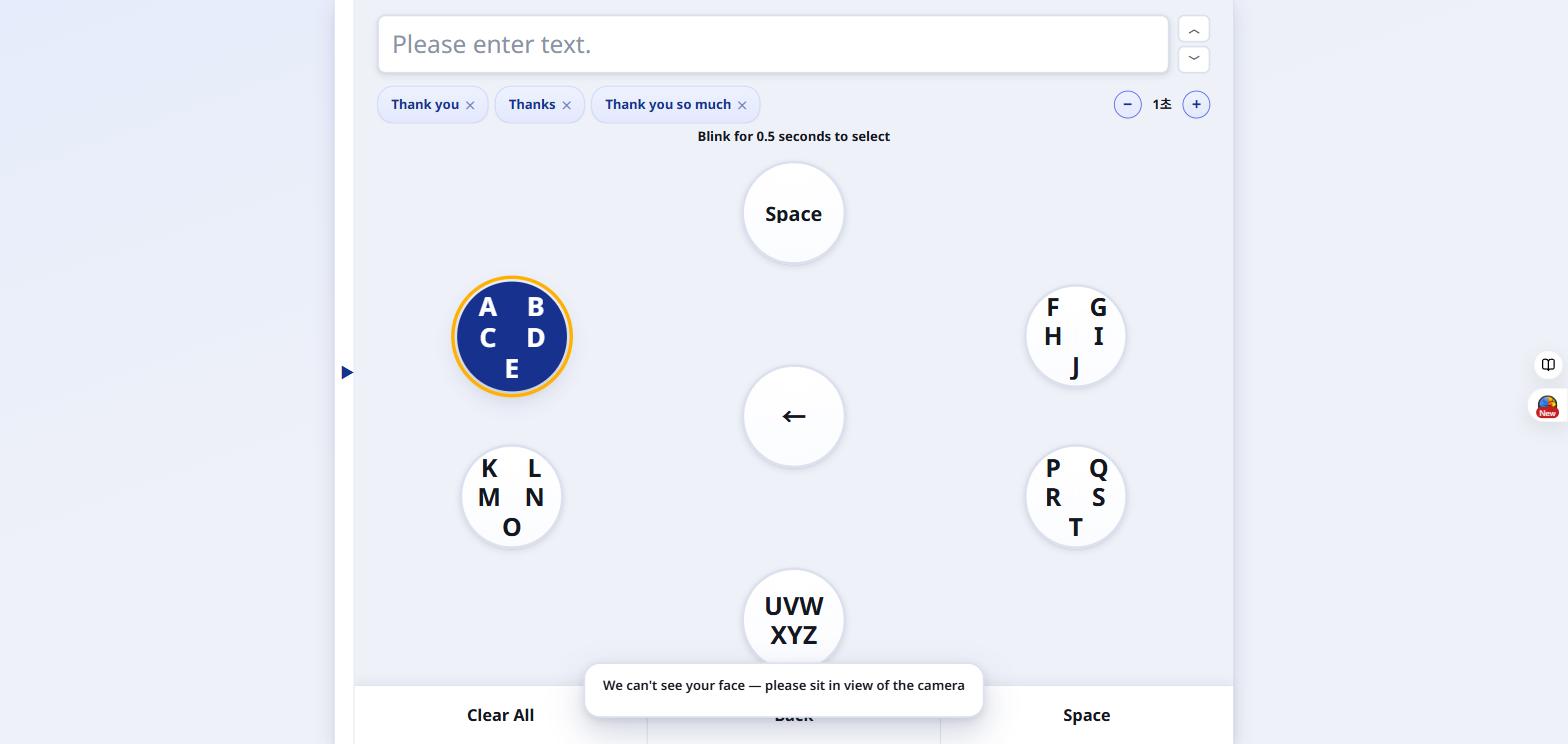
The patient can now use the board alone in full screen. Each group is highlighted in turn, by default every 1 second — here the 10 o'clock A/B/C/D/E group is highlighted.
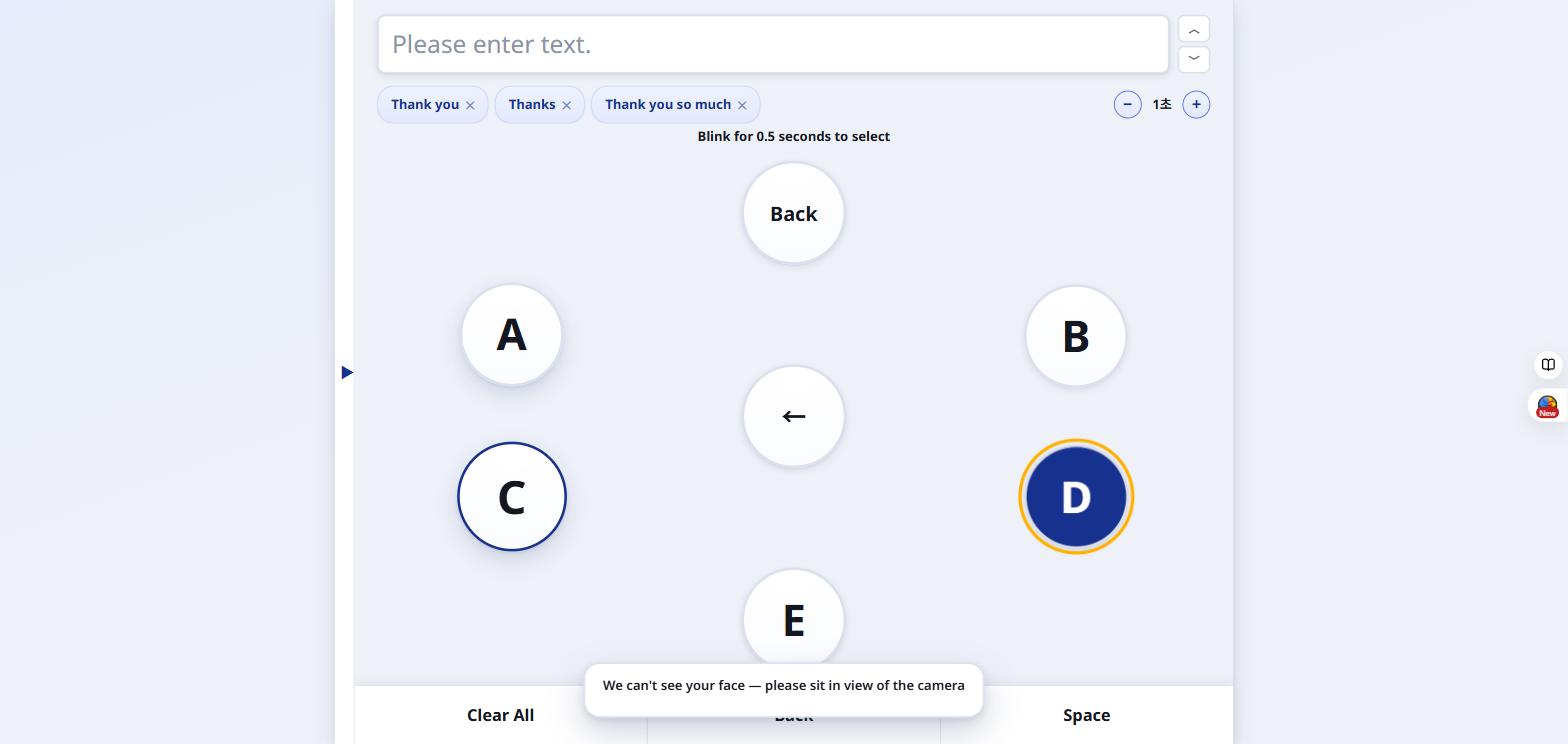
Blinking for about half a second while a group is highlighted opens it, and the same scanning continues letter by letter. Blinking again while the target letter (e.g. D) is highlighted selects it.
The word-suggestion chips above the board scan the same way — blinking while a suggested word is highlighted completes the word or sentence instantly.
After the letter groups, the scan also stops at Delete in the center of the wheel (removes one letter), then at Clear All, Back and Space at the bottom, and then at the text box at the top — blink there to hear what was written read aloud. When signed in as a patient it continues to Send, Chat Log and Contacts, and finally to the suggestion chips. Blink when the spot you want lights up.
If a wrong letter goes in, wait for Delete in the center of the wheel to light up and blink to remove it. Clear All erases everything at once and can't be undone.
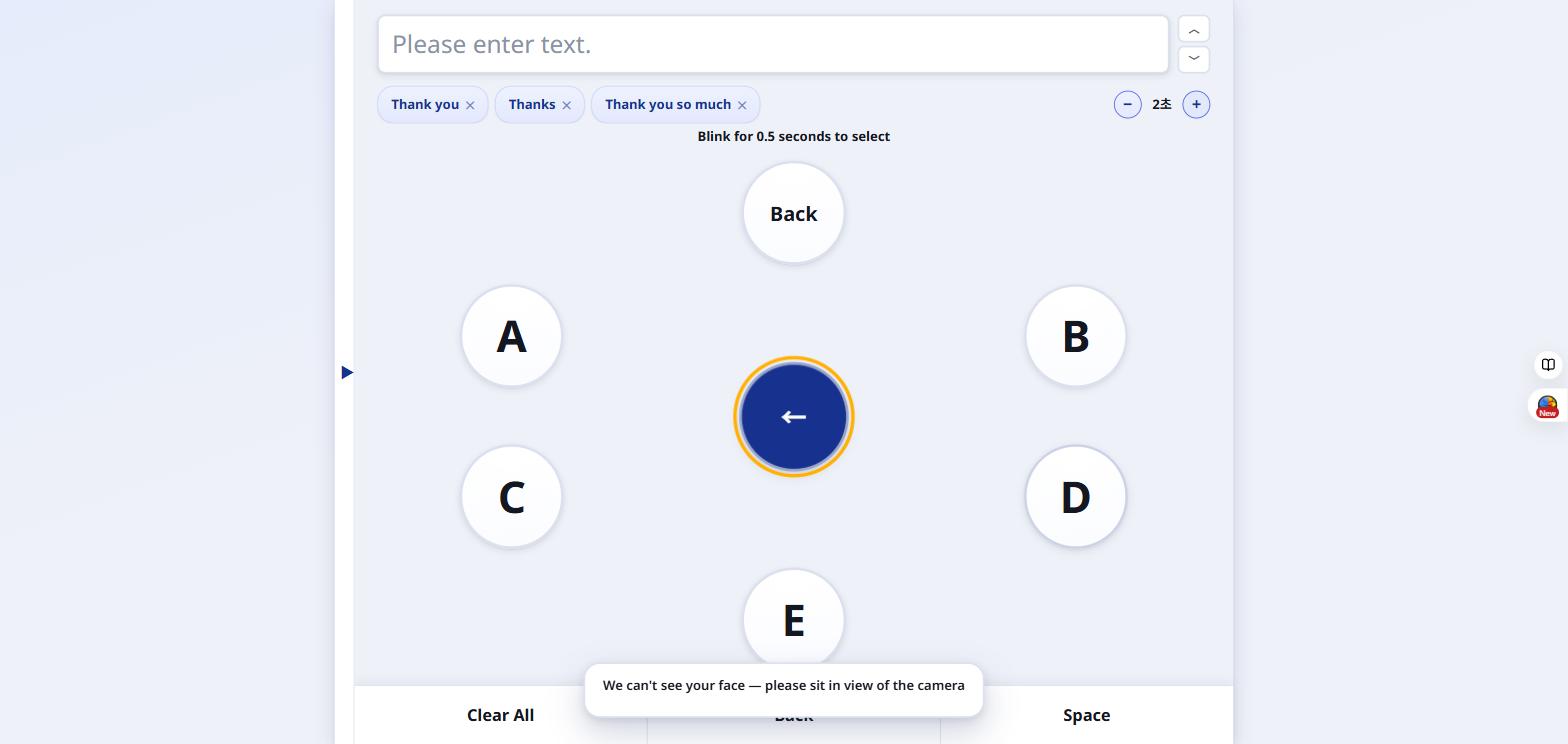
The +/- control in the top-right adjusts the scan interval from 0.7 to 5 seconds — set it to match how quickly the patient can blink on purpose.
The camera image is analyzed only on the device and is never sent anywhere. If the face can't be seen, a message asks the patient to sit in front of the camera.
Watch the video
🤝 4. Adding family and caregivers (ALSChat ID)
Each patient has their own ALSChat ID, like a messenger ID. Once a caregiver enters it, the two are connected and can chat right away — no approval step is needed.
On the patient's device
Sign up and choose "I'm a Patient". When you're signed in, a Contacts button appears at the bottom of the letter board.
Open Contacts. Your ALSChat ID (for example ABCD-2345) and a QR code are shown.
Choose "Send invitation" to share a link and the ID through WhatsApp, KakaoTalk, a text message and so on. Posting it once in a family group chat is enough — the ID doesn't expire.
When someone joins, a line like "Mina joined the chat." appears above the board, and they're listed under Contacts.
To remove someone, choose Remove next to their name twice. If the ID reached people it shouldn't have, choose "Get a new ID" twice: the old ID and links stop working, and people already connected stay until you remove them.
On the caregiver's phone
Sign up and choose "I'm a Guardian / Caregiver".
Do one of these: tap the invitation link, scan the QR code on the patient's screen with your phone camera, or open the Messages screen → Add patient and type the ID (capital letters and the hyphen are optional).
The chat opens right away. You see the messages sent from the moment you joined; earlier messages stay private.
You can join several patients and switch between them with the tabs at the top. Up to 20 people can be in one patient's chat.
💬 5. Chatting
The patient and everyone connected to them share one group chat.
Patient (on the letter board)
Write a message on the board as usual, then choose Send at the bottom. In semi-automatic mode, Send lights up right after the text box (which comes after Space).
New messages appear in a bar above the text box with the sender's name. Choose the message to hear it read aloud, and OK to clear the bar.
Chat Log shows earlier messages, and each one can be read aloud.
Caregiver (Messages screen)
Tap "Open chat →" above the letter board, or go to alschat.com/messages, and write as in any messenger.
Use + to send a photo (up to 8 MB) or a short video (up to 30 seconds, 20 MB).
"Read" appears under your message once the patient has seen it.
Allow notifications to be told about new messages even when the app is closed.
To leave a patient's chat, choose Leave twice.
ALSChat is not an emergency service. In an emergency, call your local emergency number.
Try it now
Open ALSChat and pick the mode that fits today — you can always change it later from the Settings menu.
Open ALSChat